Navigating and Understanding the Logs Area
Written By rob@cloudtoggle.com
Last updated 11 months ago
The Logs area in CLOUD TOGGLE allows an administrator to search for and find logs in order to audit activty on the system. In the main menu bar on the left-hand side, click on Logs:

A list of all of the logs is displayed in a table.
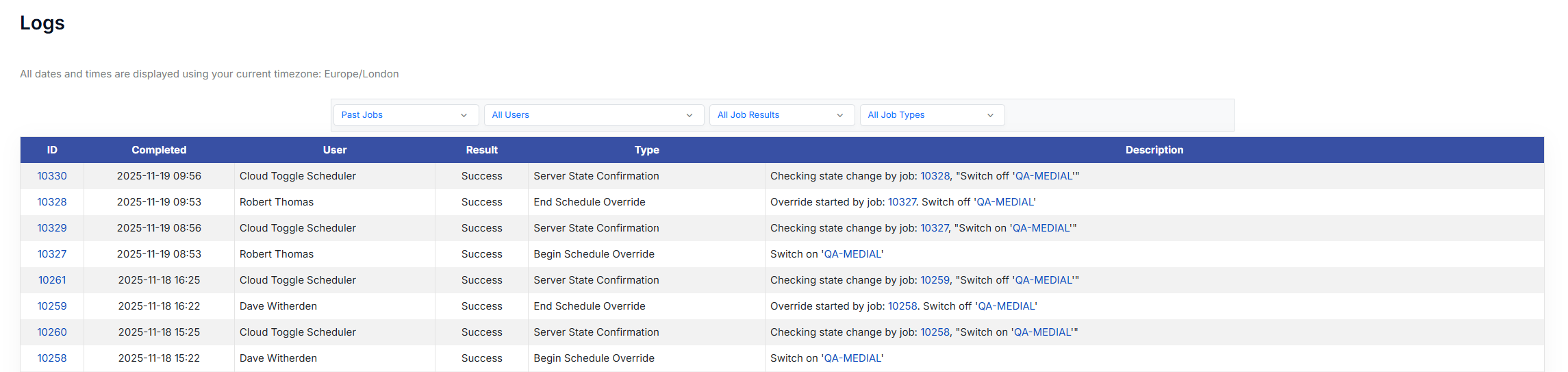
The table shows:
ID - The ID of the log
Completed - The date and time that the action was completed
User - The user who carried out the action. ‘CLOUD TOGGLE Scheduler’ denotes that it was a action taken by the system, such as CLOUD TOGGLE shutting down a VM after a manual override time has expired
Result - The result of the action. This can be either: Success, Failed, Cancelled or Expired
Type - The type of action that was made, for example End Schedule Override
Description - More information describing what the action was doing
Using the drop-down boxes at the top of the page gives the administrator the ability to narrow down the results shown in the table to pinpoint specif log entry types.
The first box allows for either past or pending jobs to be selected:

The next box along allows for a spefic user to be selected in order to return actions performed just by them. By default the box is set to ‘All Users’:

The next box gives options for searching on job states. The following options can be selected: All Job Results (default), Success, Failed, Cancelled or Expired:

The last box allows searching against the type of job:

All Job Types is selected by default, however any of the following job types can be filtered on:
Begin Schedule Override
Clean/Refresh Servers
Cloud Connection Test
End Schedule Override
Invitation Expiry Notification
Notifications
Refresh Server Status
Refresh Cloud Connection Server Statuses
Schedule State Confirmation
Scheduled State Change
Scheduled State Change Retry
Server State Change
Server State Confirmation
Still need help? Ask the team