Overriding a Schedule for a Virtual Machine
Written By rob@cloudtoggle.com
Last updated Over 2 years ago
When a schedule is attached to a virtual machine
it will dictate when the VM is powered on or off. Sometimes it is desirable to override the state of the VM dictated by the schedule and turn it on or off manually. This can be done by changing the toggle for the state of the VM on the Manage Servers page. In order to override a VM:
1. Locate the VM to be overridden on the Manage Servers page
Instead of reporting as 'Off', VM's that are part of a schedule and that are turned off are referred to as 'Parked'. The Schedule icon will be active as a button, and can be clicked to view the schedule.
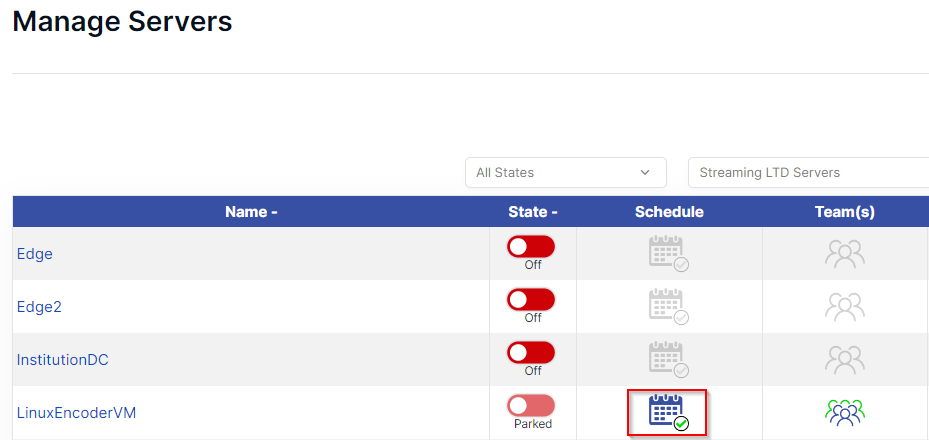
2. Click on the State toggle for the VM
which in this example is parked.

This will open a lightbox window displaying the current schedule that is attached to the VM. To make changes to the schedule, click on the Open Schedule button.

3. Enter in the number of hours to override the schedule for
Leave the state toggle set to green (On) for starting a VM which is parked, and click SET OVERRIDE.
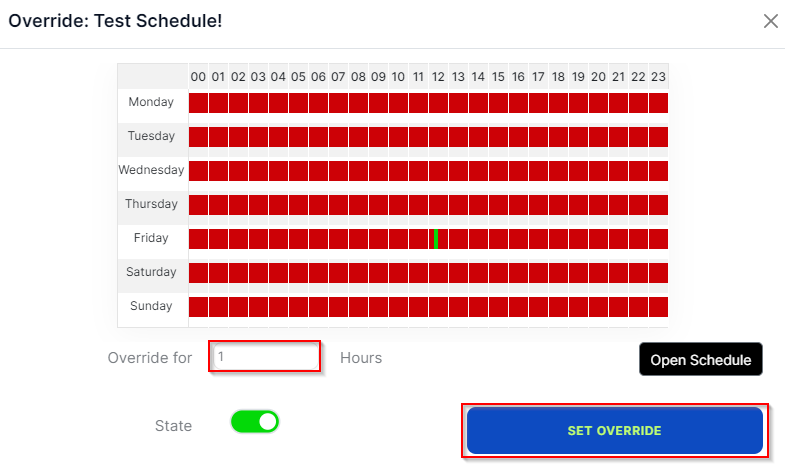
In this example we have set the VM to power up for one hour. After this time, the VM will shut down and remain parked until the schedule starts it back up again.
Still need help? Ask the team