How to Create a new App Registration Secret
Written By rob@cloudtoggle.com
Last updated About 1 year ago
When a new Azure cloud connection is made an app registration is created and a secret is generated in order for CLOUD TOGGLE to access the Azure subscription. The maximum term for a secret is 2 years. When this secret is expiring, it is necessary to create a new one and update the one held in the CLOUD TOGGLE account connection in order for the service to continue working.
To create a new client secret:
Log into Azure and find the app registration that CLOUD TOGGLE is using for the connection. Search for, and click on App registrations:
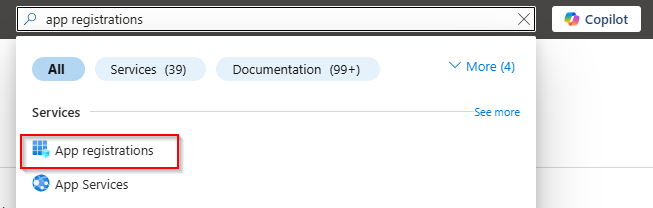
If the app registration in question is not shown, click on All applications.

Click on the app registration:

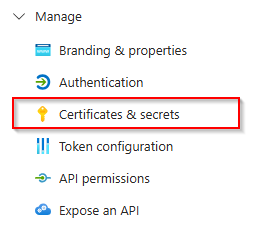
From the menu on the left, click on Manage, and then Certificates and secrets.
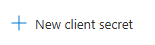
Click on New client secret:
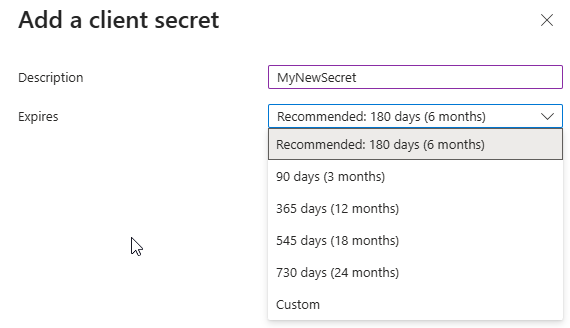
Enter in a description and set an expiry date. We recommend setting the maximum, which is 730 days (2 years):
Click Add:

Copy the secret VALUE:

Log into CLOUD TOGGLE, and click on Cloud Connections:

Click Edit for the subscription you want to update with the new secret value:

Enter the new secret value in the Secret field, and then click Update.

This completes the process, and the cloud connection will continue working when the old key expires.
Still need help? Ask the team